How to share dance class videos with your students
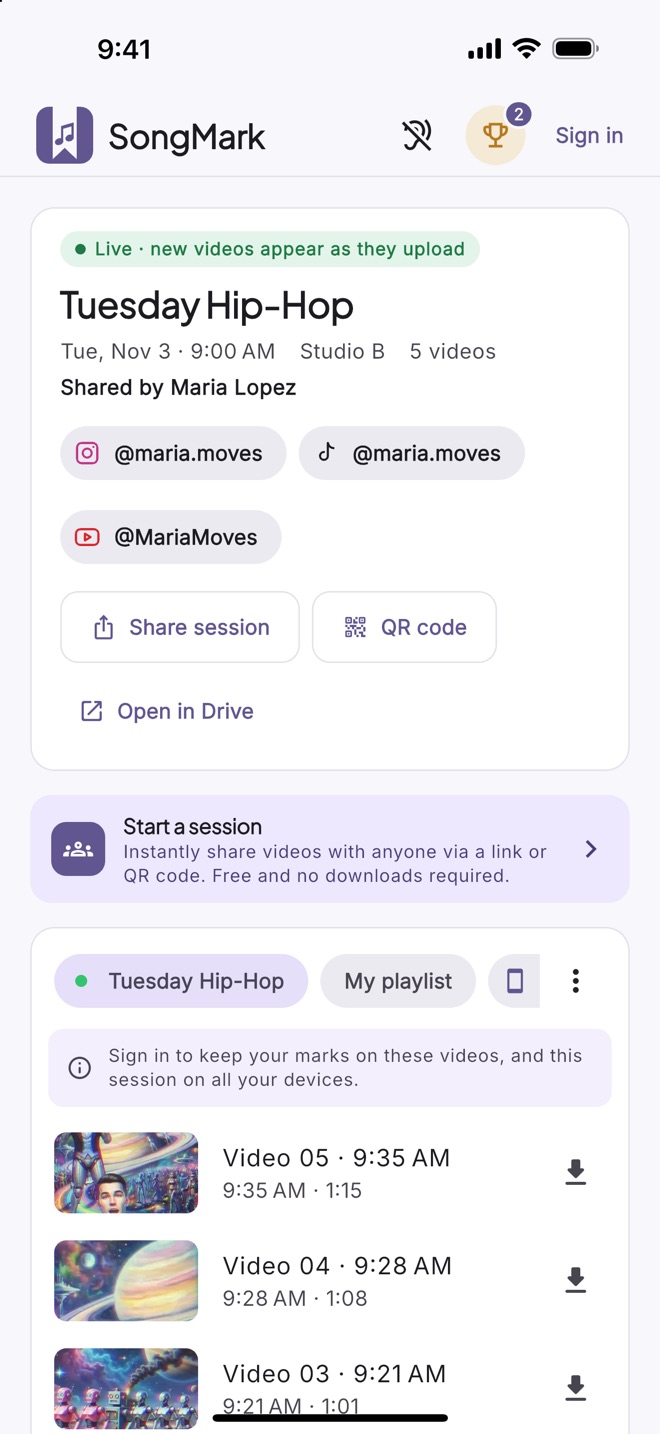
After class, students ask for the videos, and the evening goes on sending files one by one. With sessions in SongMark, every video you record during class uploads to your own Google Drive while you keep teaching, and your students get one link, or a QR code to scan, that opens them all in SongMark. There they can loop the part they're learning, slow it down and mirror it. Students don't need an account or an app.
Open SongMark, it's free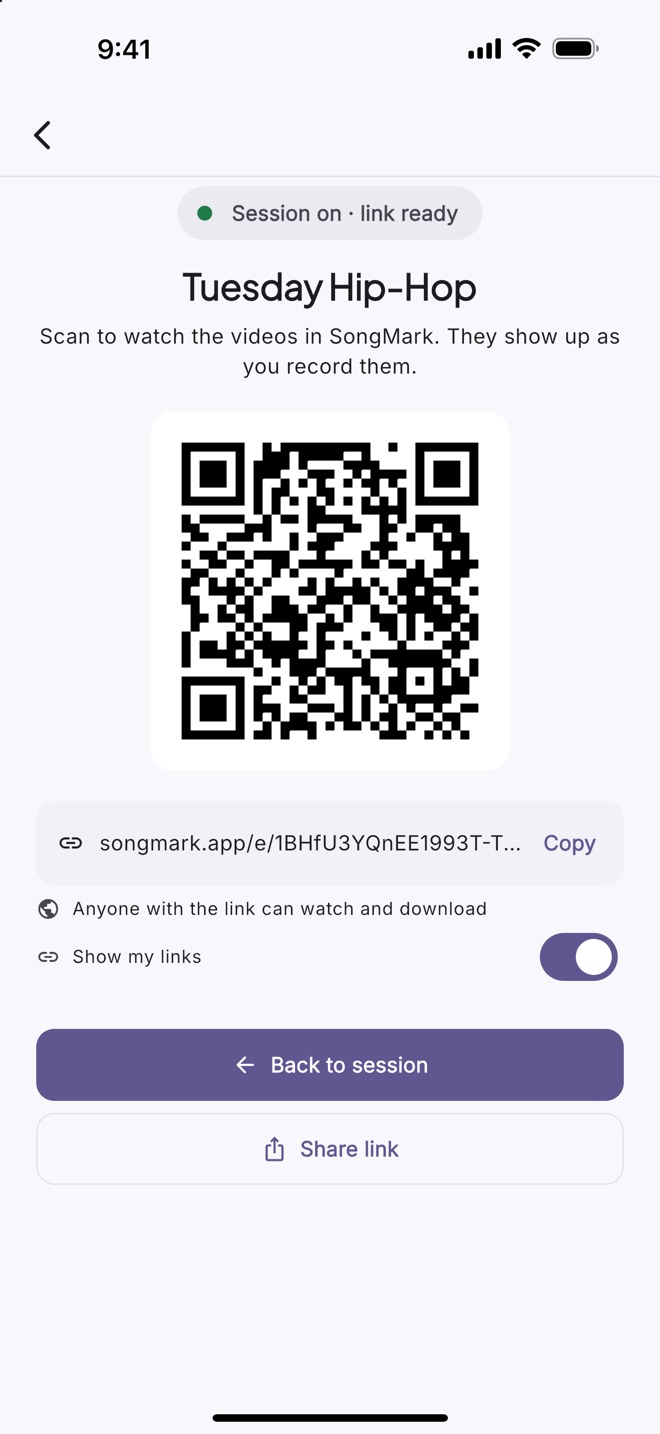
Step by step
Start a session
Turn on the camera and tap Start a session above it, in the iPhone app or at songmark.app. Sessions need a free SongMark account, so you'll be asked to sign in first if you haven't.
Connect Google Drive
The first time, SongMark asks to connect your Google account. It can only see the files it creates: a SongMark folder in your Drive, with a folder for each session. The videos use your own Drive storage.
Name it and choose who can open it
Give the session a name, like Tuesday Hip-Hop, and add where it's happening if you like; both show on the session for your students. Choose Anyone with the link to share by link and QR code, or Only people I add to share with specific email addresses.
Share the link straight away
The link and QR code are ready before you record anything. Show the QR code at the start of class, or send the link to your class group chat. New videos appear for everyone as they upload.
Record as usual
Every take, up to 10 minutes each, goes into the session and uploads on its own while you keep teaching. If you'd rather not share one, delete it before it finishes uploading.
Students watch and practice
The link opens the session in SongMark, newest video first. Students tap a video to watch it, then loop the section they're learning, slow it down and mirror it, like any other video in SongMark. With a free account they can tap Save as Playlist to find the session, and their marks, on every device.
End the session
Tap End session when class is over. Videos still uploading finish, and the link keeps working. You'll find the session later under Past sessions in your account menu, with its link and QR code.
Share your Instagram, TikTok and YouTube with your students
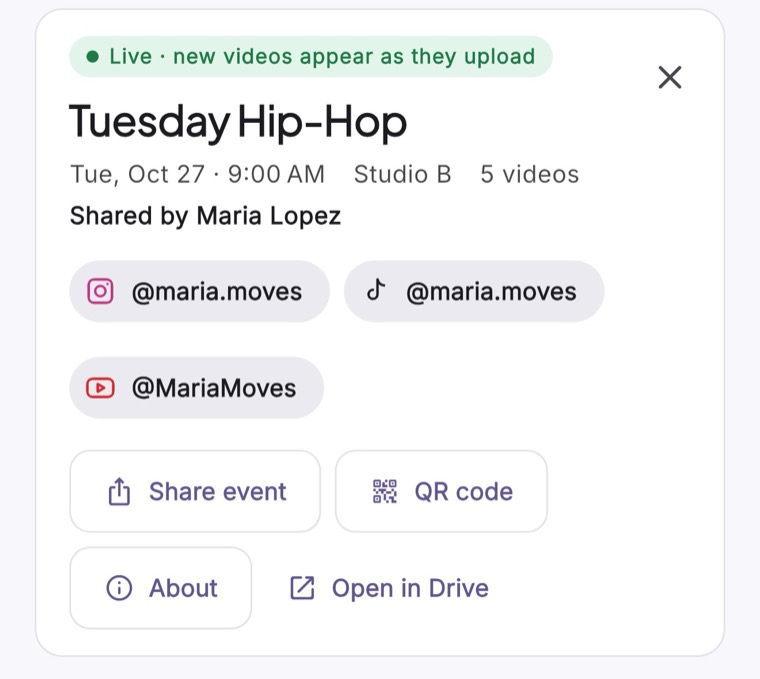
Every session can show where to follow you, right next to your name. Students who open your class videos see your Instagram, TikTok, YouTube, Facebook or LINE, and your website, one tap away, so every class link also grows your following.
- Add them once in Your links, in your account menu. Type your username, or paste the link to your profile.
- SongMark builds each link itself, so students only ever land on your real profile.
- Changed your handle? Save the new one and your past sessions update too, so old class links never point to an old account.
- Leave them off for a session with the Show my links switch when you start it, or turn them on later from Past sessions.
Tips for teachers
- Show the QR code before you start. Students can scan it while they warm up, and the videos appear on their phones as you record.
- Record in short takes. A take per 8-count section or per run-through uploads faster and is easier for students to find and loop.
- Mark the counts after class. Open a video yourself and add marks on each 8-count; with your account, they’re there whenever you open it again.
- Ask before you film. Get permission from everyone in the videos, and from parents for anyone under 18. Anyone with the link can watch and download the videos, so choose Only people I add when that matters.
Encourages students to keep learning at home
Class ends, but the learning doesn’t have to. Once you share the session, every video from class is on your students’ own phones. At home they can open it, loop the section that didn’t stick, slow it down and mirror it, then film themselves side by side with the video to check their timing and shapes in the comfort of their own space.
That creates a feedback loop between dancers and teachers. Students arrive at the next class having already practiced, and they can send you a take of their own when they want feedback. You spend less time re-teaching last week’s choreography and more time on the details that move them forward.
Questions
Do my students need an account or the app?
No. The link opens in any browser on iPhone, Android or a computer. If they have the iPhone app, it opens there instead. A free account lets them keep the session and their marks on all their devices, but it's optional.
Where are the videos stored?
In your own Google Drive, in a SongMark folder with one folder per session. They use your Drive storage, and SongMark doesn't keep a copy. Deleting a video or folder in Drive removes it for everyone.
What can SongMark see in my Google Drive?
Only the files and folders it creates. SongMark asks for Google's narrowest Drive permission, so the rest of your Drive stays private. You can disconnect Google Drive in SongMark at any time.
What happens if the connection drops?
Recording keeps working. Videos wait on your phone and carry on uploading from where they stopped once you're back online. On mobile data, uploads wait for Wi-Fi unless you turn on Upload on mobile data.
How do I stop sharing a session?
Open Past sessions in your account menu and tap Stop sharing, or change the folder's sharing in Google Drive. Videos students have already downloaded stay with them.
Can I share with only some students?
Yes. Choose Only people I add and enter their email addresses. They open the videos in Google Drive, signed in with the account you added, so there's no QR code for those sessions.
Is there a limit?
Each take stops at 10 minutes and uploads; start a new take to keep going. There's no limit on the number of videos, apart from your Google Drive storage (15 GB comes free with a Google account).
Is it free?
Yes, for you and your students.
Can I add my Instagram or TikTok to my class videos?
Yes. Add your Instagram, TikTok, YouTube, Facebook or LINE username and a website in Your links, and they show on your sessions next to your name. Students tap them to follow you.
Ready to practice?
The quick tutorial walks you through slowing down a practice video, mirroring it, marking and looping a section, and filming yourself. Free, with no download or account needed.
Launch Tutorial